If you’ve ever tried creating a SWOT analysis in Word, you’ve probably felt the friction from tables that won’t align, to layouts that break as you edit, and versions that quickly get out of sync. In this guide, you’ll learn detailed steps of how to create a SWOT analysis in Word, and where Word starts to fall short for strategic work. We’ll also explore better alternatives when you need more flexibility and collaboration, along with free SWOT templates to help you move faster and plan with confidence.
What is a SWOT Analysis?
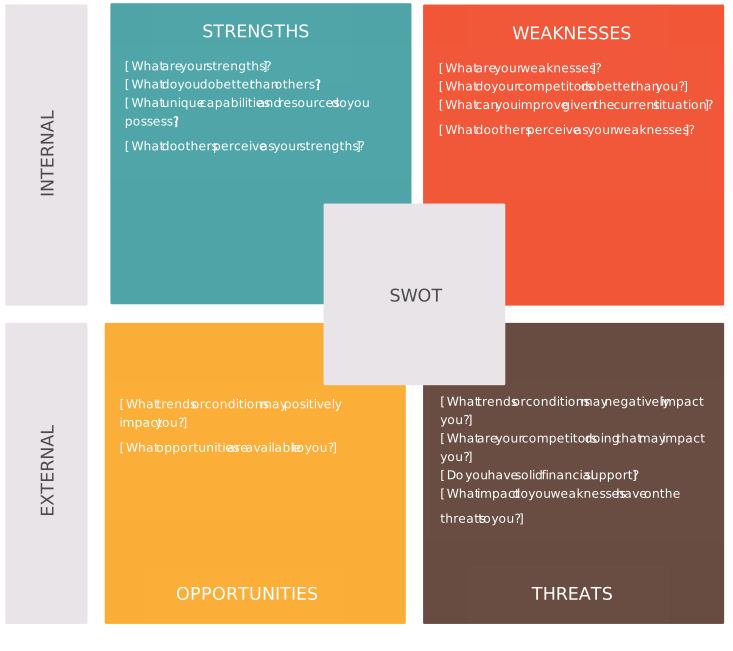
A SWOT analysis is a simple way to step back and see the full picture of what’s working, what’s holding you back, and what’s coming next. It helps you look at your strengths, weaknesses, opportunities, and threats side by side, so decisions feel clearer instead of overwhelming. Whether you’re planning a project, reviewing a business idea, or preparing for a presentation, a SWOT analysis turns scattered thoughts into focused insights. The goal isn’t to overanalyze but to understand where you stand today and make smarter moves for what’s ahead.

How to Make a SWOT Analysis in Word
Let’s look at how to do a SWOT analysis in Word with the following step-by-step instructions.
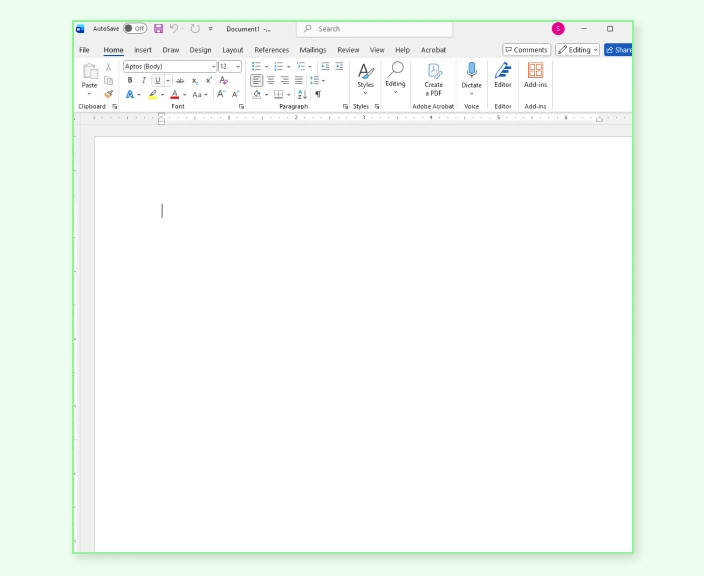
Step 1: Open a Blank Document
Start with a new Word document so you’re not fighting existing formatting. This gives you a clean space to think through your analysis, though you’ll be setting up and managing the structure yourself as you go.
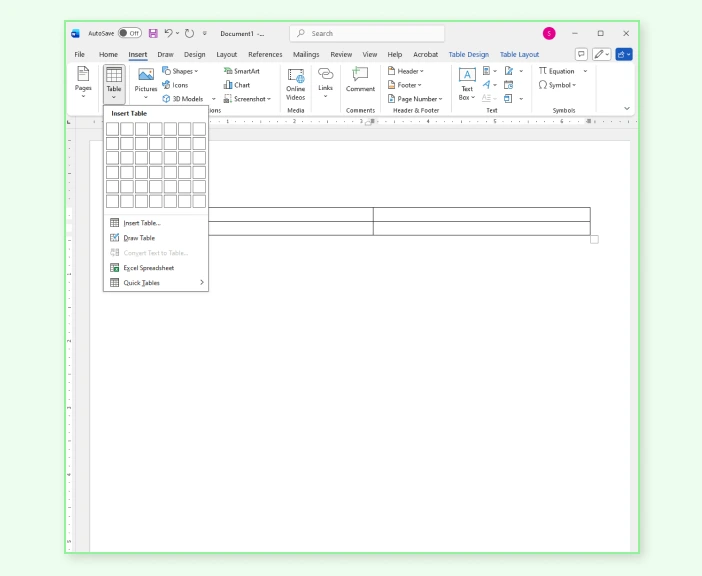
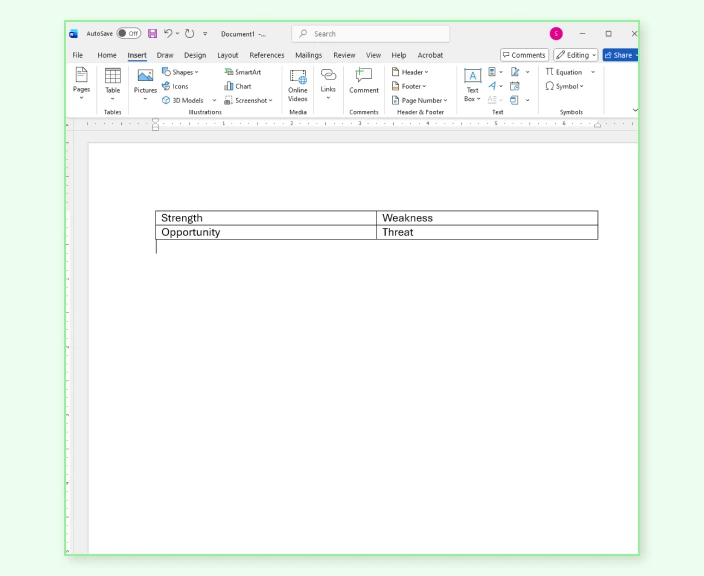
Step 2: Create a 2×2 Table
Insert a table with four sections—Strengths, Weaknesses, Opportunities, and Threats. Tables help keep everything aligned in Word, but they can feel restrictive once you start adding more detail or want to rearrange ideas.
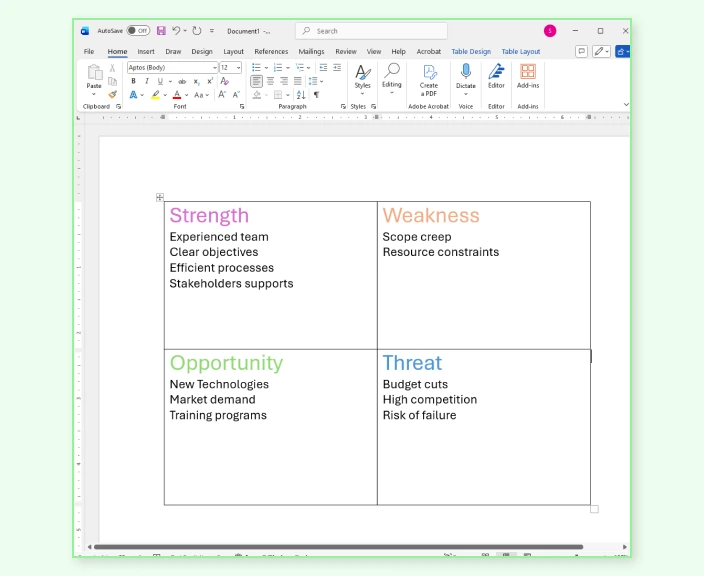
Step 3: Label and Fill Each Section
Clearly label each quadrant and begin listing your SWOT points using bullet lists. Keep entries short and specific so they’re easy to scan and compare, especially as the table fills up.
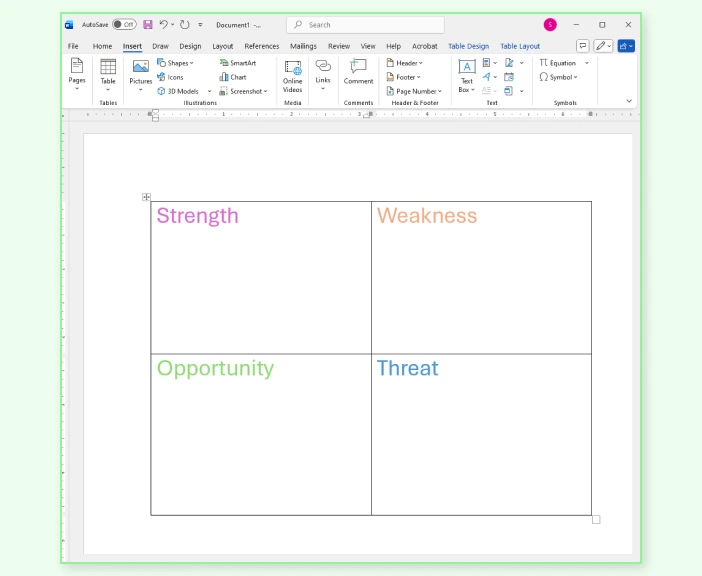
Step 4: Format for Clarity
Use bold headings, spacing, or light shading to separate sections and improve readability. These small formatting touches make the analysis easier to follow, even though they may need repeated adjustments as content changes.
Step 5: Review, Save, and Share
Review your SWOT analysis to remove overlap and sharpen each point, then save and share the document for feedback. Collaboration usually happens through comments or multiple versions, so it helps to be clear about which file is the latest.
Limitations of Doing a SWOT Analysis in Word
Now that you know how to draw a swot analysis in Word, let’s look at its limitations. While Word is familiar and easy to start with, it isn’t built for ongoing strategic work. As your SWOT analysis grows or needs input from others, a few common challenges tend to show up.
Layout becomes hard to manage: SWOT analyses rely on structure, but Word tables can feel rigid. Adding or rearranging points often means resizing cells, fixing alignment, or reworking formatting by hand.
Updates take more effort than they should: Strategies evolve, but making frequent updates in Word can be slow. Small changes can throw off spacing or formatting, especially as the document gets longer.
Collaboration is limited: Sharing a SWOT analysis in Word usually means emailing files or managing comments across versions. It’s easy to lose track of feedback or end up with multiple copies of the same document.
Harder to see connections: A SWOT analysis is most useful when you can compare factors side by side. In Word, it’s harder to explore relationships between strengths, weaknesses, opportunities, and threats beyond static lists.
Not ideal for reuse or expansion: Once the analysis is done, reusing it for presentations, action plans, or follow-up strategy often means copying content into new documents and starting over.
If you need a more flexible, collaborative way to build and evolve your SWOT analysis, tools like Creately offer ready-made templates, real-time collaboration, and easy updates, without the formatting friction.
Why Use Creately to Conduct a SWOT Analysis
If you want to skip the formatting headaches and focus on the analysis itself, Creately’s SWOT analysis tool makes it easy to create, update, and collaborate on SWOTs without starting from scratch every time. Here’s what it offers.
Get Started Instantly
Start faster with ready-made templates: Jump into the analysis without worrying about setup or layout with Creately’s library of professionally-made SWOT analysis templates.
Generate ideas faster with Creately AI: Use simple prompts to spark insights and fill out your with suggested SWOT factors using Creately’s AI SWOT analysis generator.
Flexibility & Ongoing Strategy
Easily update and evolve your analysis: Add, move, or refine SWOT factors as your strategy changes with no broken tables or manual resizing.
Reuse your SWOT for next steps: Turn your analysis into action plans, presentations, or extended frameworks like TOWS without rebuilding.
Collaboration & Alignment
Collaborate in real time: Multiple users can contribute simultaneously, with live cursors, comments, and @mentions to keep feedback organized.
Version history and restore: See how your SWOT evolved, compare iterations, and roll back if needed.
Access controls and sharing: Manage who can view, comment, or edit your analysis which is great for cross-team work.
Context & Depth
Attach supporting documents and links: Add notes, files, and references directly to SWOT factors so context travels with the insight.
Sticky notes and brainstorming tools: Capture raw ideas quickly, group them, and then refine into structured SWOT entries.
Connected diagrams and linking: Link your SWOT to other diagrams, workflows, or project boards to show impact and dependencies.
Visual Clarity & Customization
Flexible visual customization: Change colors, shapes, fonts, and backgrounds so your SWOT analysis matches your audience’s needs or your company’s brand.
Highlighting and annotations: Use callouts, icons, and emphasis styling to spotlight priority items or raise flags directly on the analysis.
Reusable style themes: Apply consistent style themes across diagrams so your strategic materials look cohesive when used in presentations or planning decks.
Presentation & Sharing
Built-in presentation mode: Present your SWOT analysis directly from the canvas without switching tools or rebuilding content using presentation mode.
Export-friendly formats: Save your analysis as PDF, PNG, or embed it in reports and intranets to share with stakeholders.
Creately Vs Word SWOT Analysis Features Comparison
Here’s how Creately compares to Word when it comes to creating and managing a SWOT analysis.
Feature | Creately | Microsoft Word |
SWOT-specific templates | Ready-made SWOT and strategy templates designed for analysis | Requires manual table setup |
AI SWOT analysis template | AI-assisted prompts help generate SWOT factors faster | Not available |
Layout flexibility | Easy to add, move, and reorganize items without breaking structure | Tables become rigid as content grows |
Visual customization | Full control over colors, shapes, styles, and highlights to emphasize priorities | Limited formatting, mostly text-based |
Collaboration | Real-time collaboration with live cursors, comments, and @mentions | File-based sharing and comments |
Version history | Built-in version tracking and restore options | Manual version control |
Notes & attachments | Add notes, links, and documents directly to each SWOT factor | Notes live separately from the analysis |
Brainstorming tools | Sticky notes, mind maps, and ideation tools built in | Not supported |
Reuse & extend analysis | Convert SWOT into TOWS, action plans, or presentations in the same space | Requires copying into new documents |
Presentation mode | Present directly from the canvas without exporting | Requires separate slides or formatting |
Sharing & access control | Granular control over view, comment, and edit access | Limited access controls |
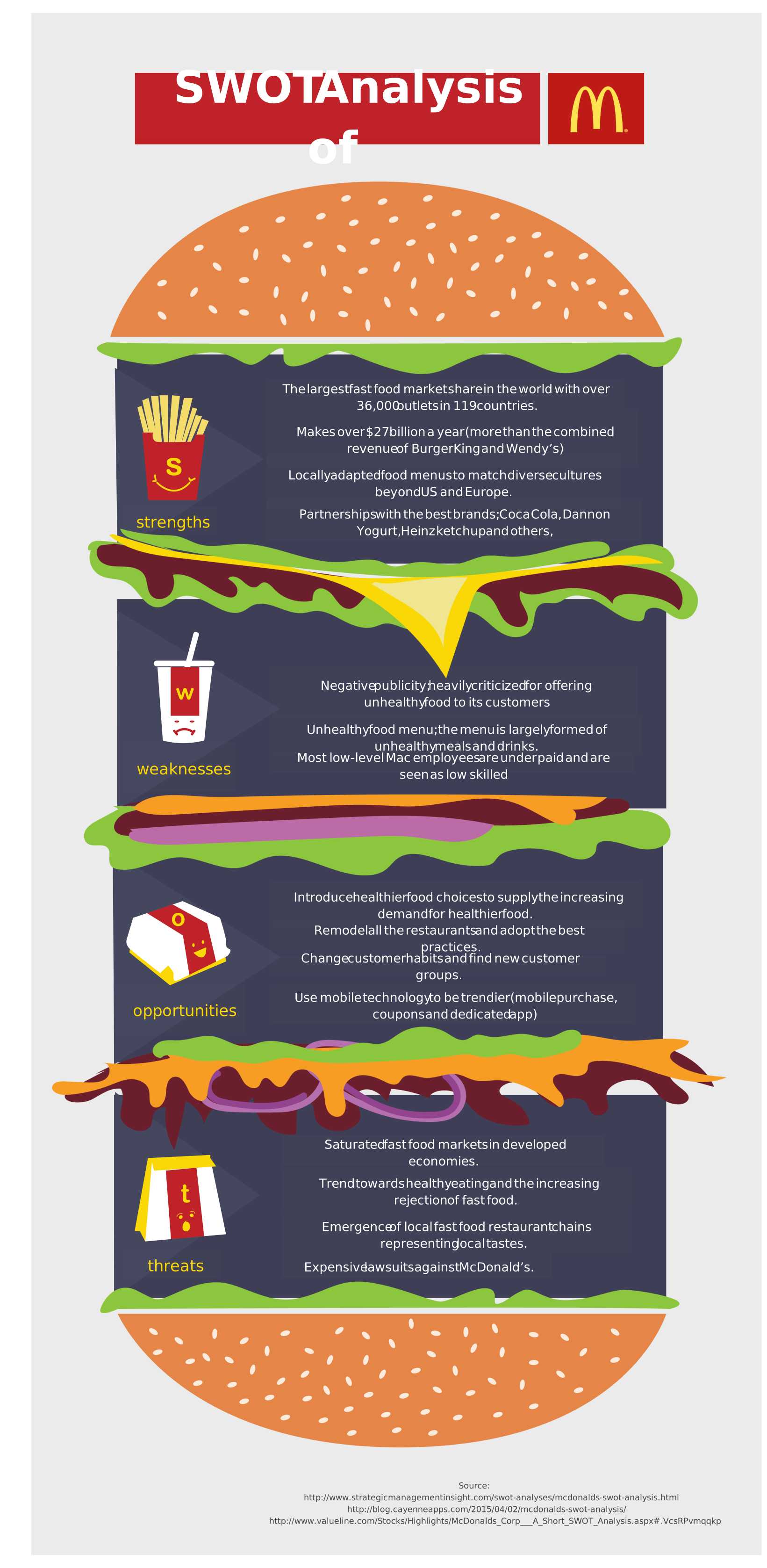
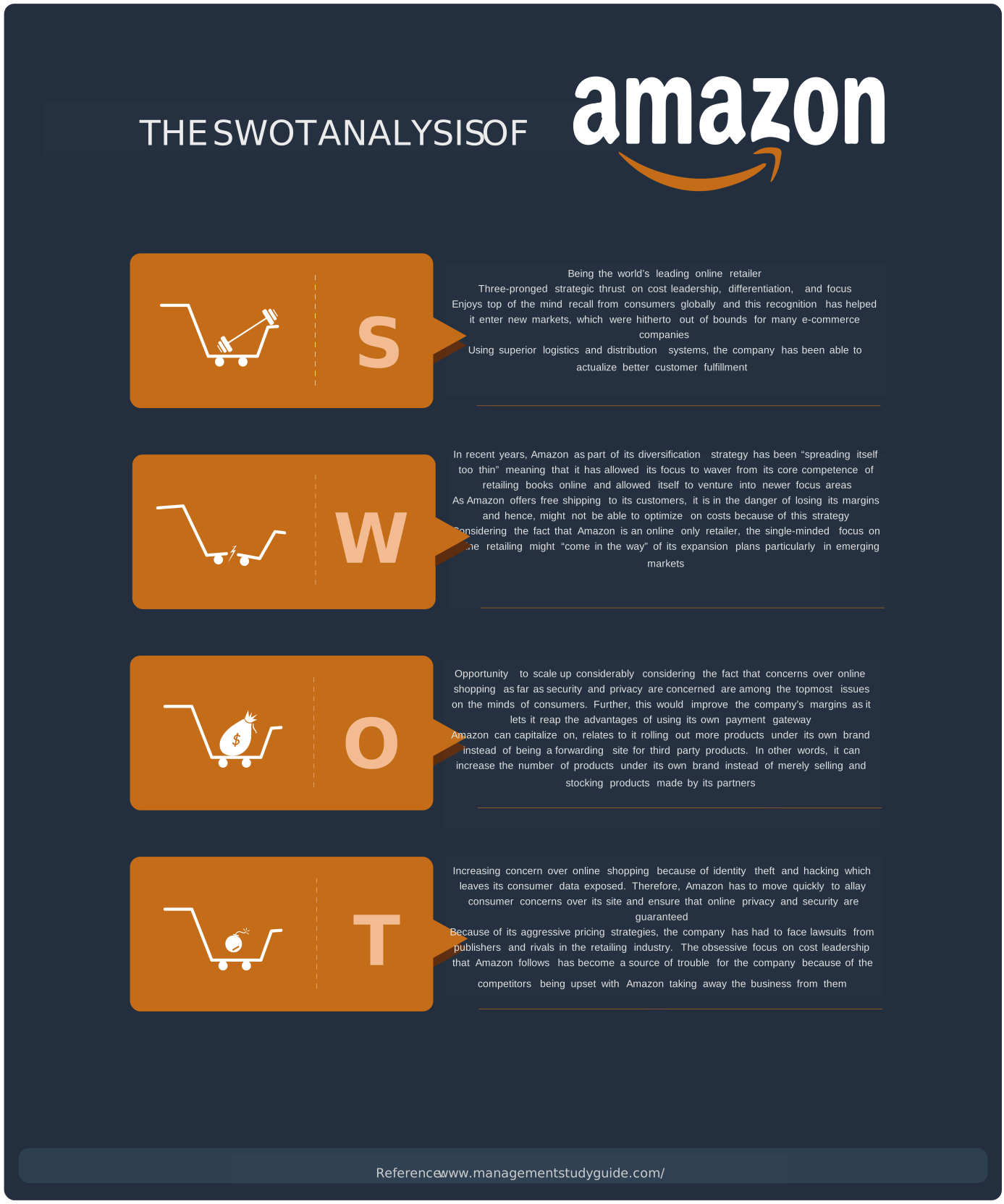
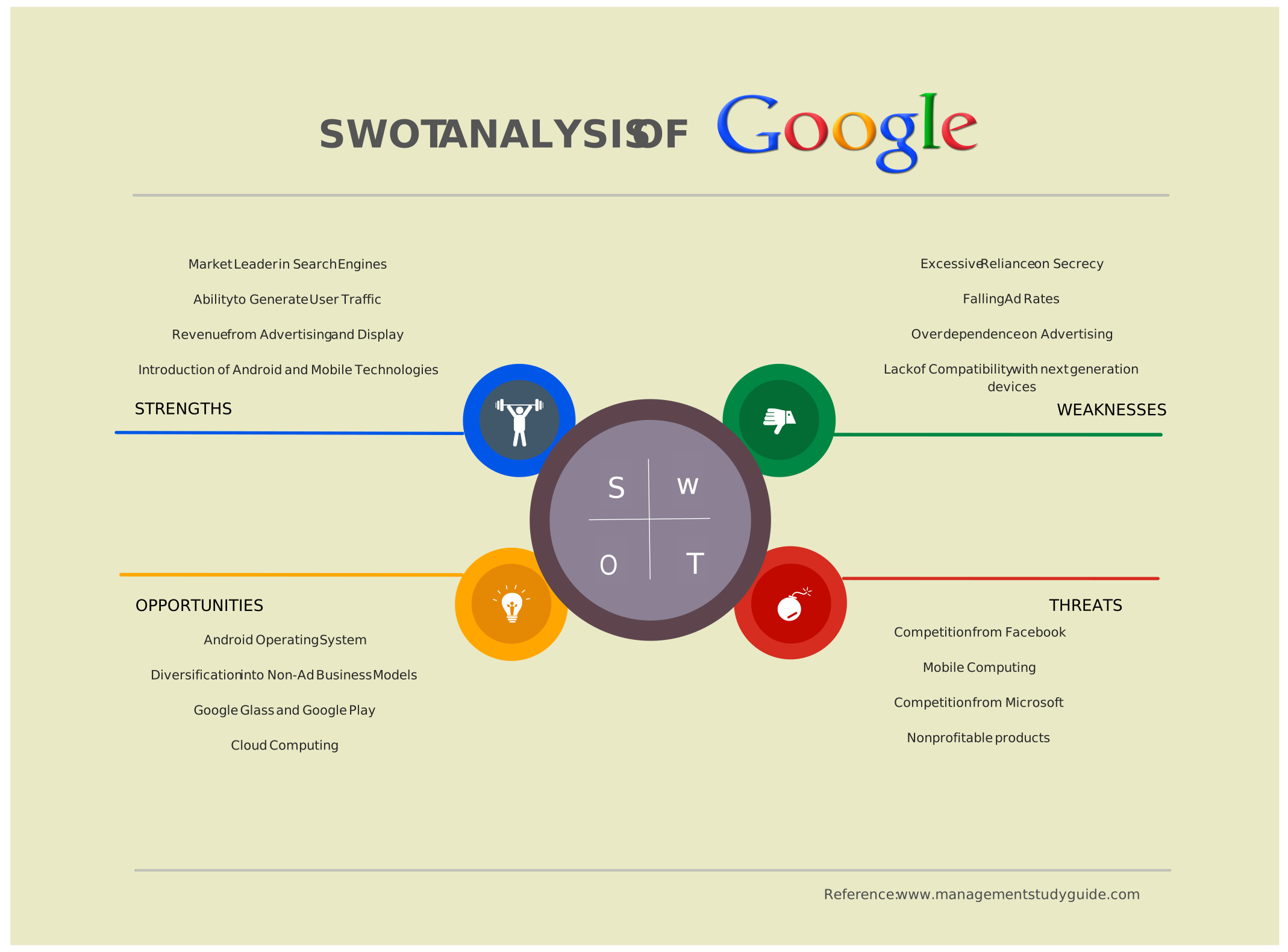
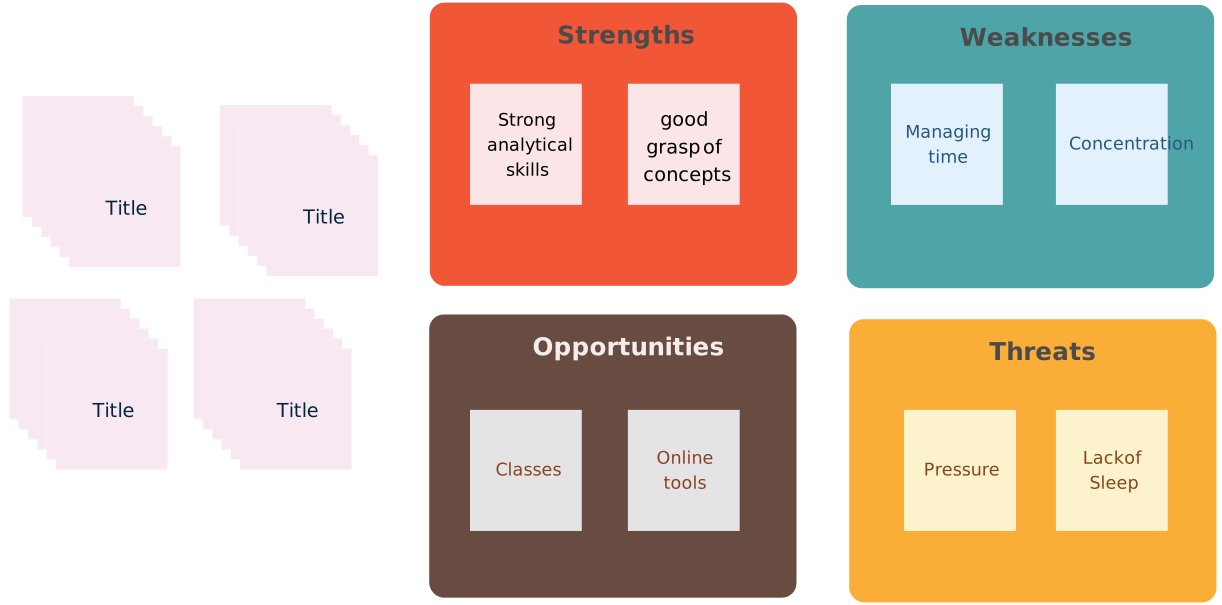
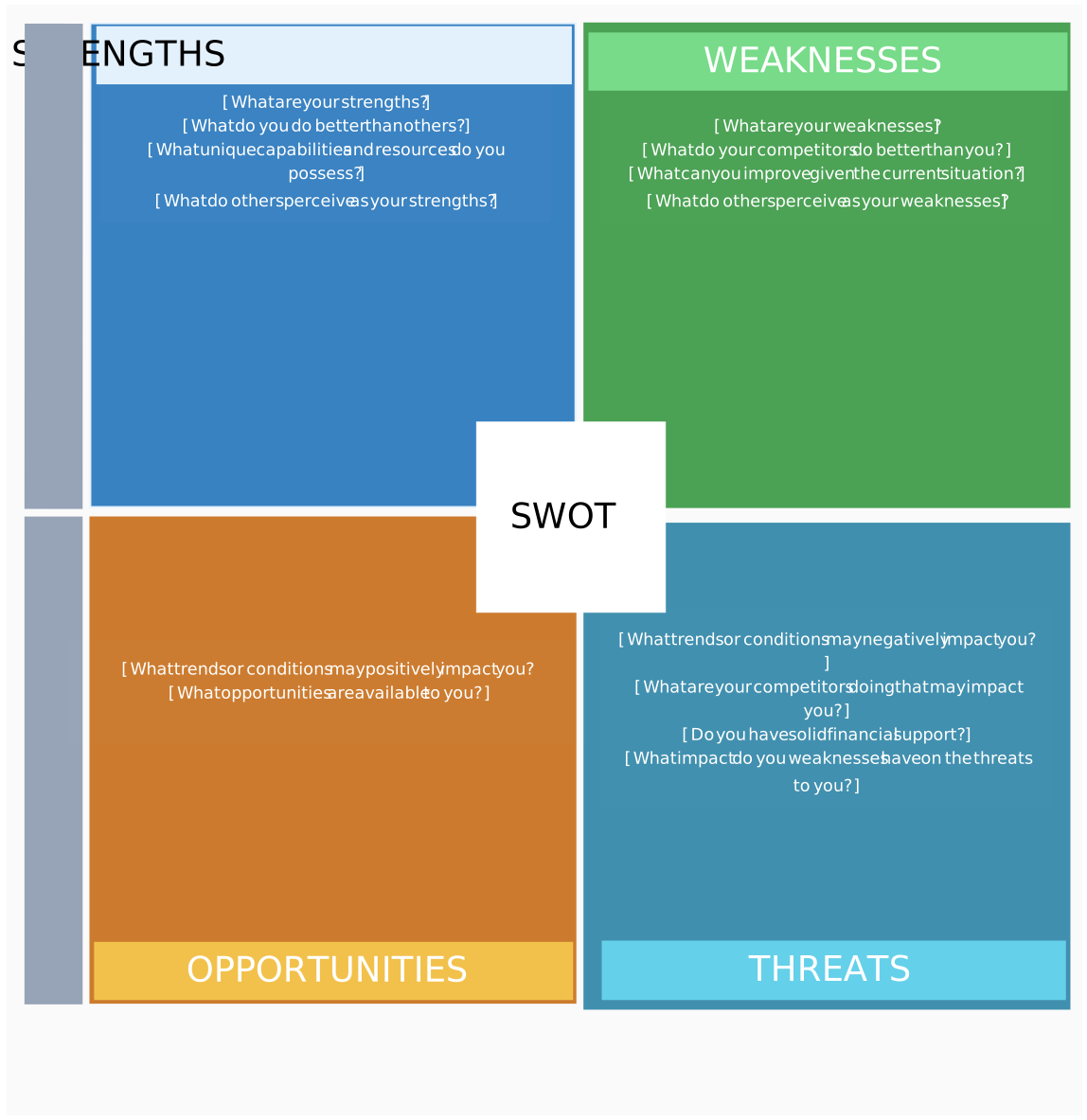
Free SWOT Analysis Templates to Get Started



Helpful Resources for Performing SWOT Analysis
Learn how to conduct a SWOT analysis using Microsoft PowerPoint.
Learn about the differences between PEST and SWOT analysis and how they can be used together.
Discover how SWOT analysis is used in marketing with examples and templates.